Overview / Your First Edit
Your First Edit
Open a set list, drag songs where you want them, and try Undo—your safety net.
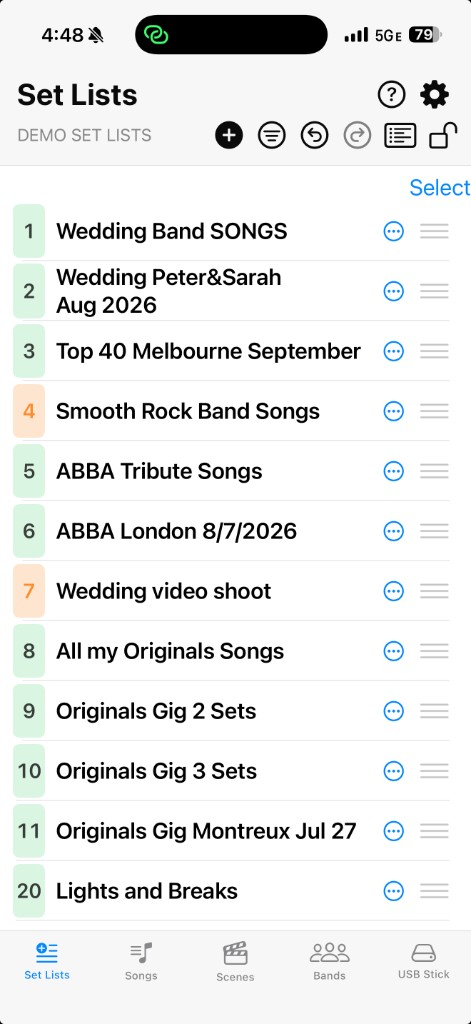
With a backup open, the Set Lists tab shows your Scene Chains. Tap a set list to open the editor (or use the context menu → Edit).
Open the Set List screen on the Navigation Bar
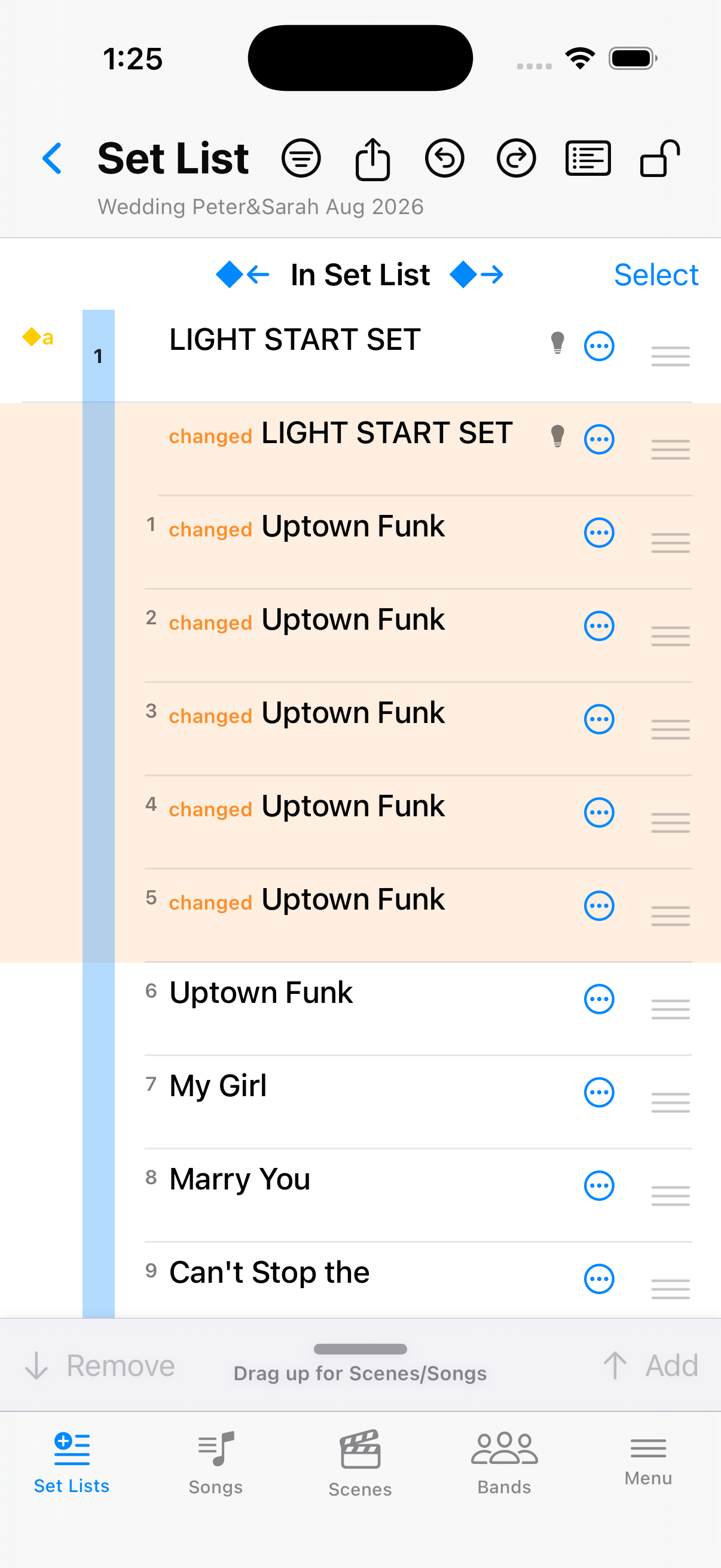
The Set Lists shown should initially look exactly like the scene chains on your Fantom. You can modify the list via drag and drop (unlock the  Lock icon first) and use the extensive context menu to copy, paste, swap, delete, and more. Lines that are colored amber on the screen have been changed by you since the initial import.
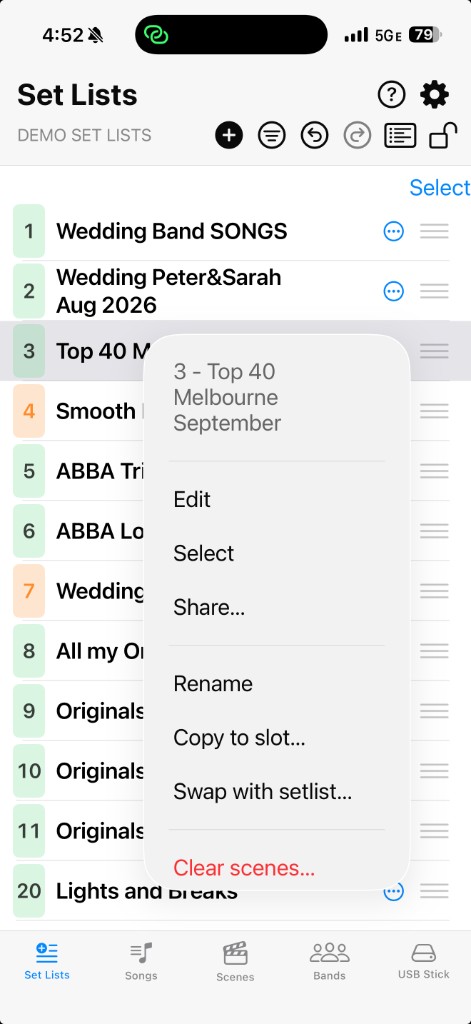
Move a song within a set list with Drag & Drop
In the editor, unlock Lock if needed, then reorder with the drag handle.
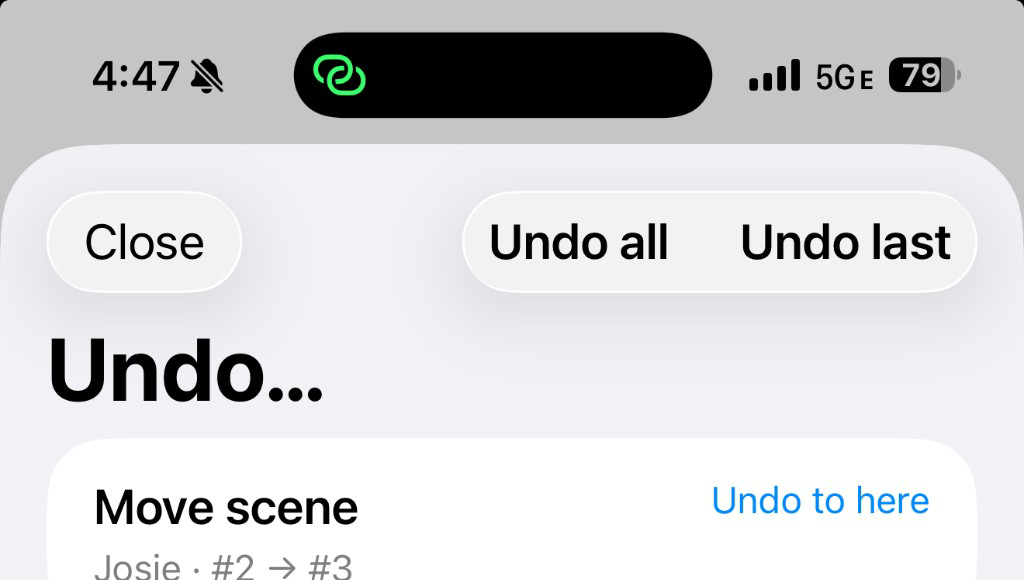
Edits are saved by Fantom Set List Buddy as you go, but you need to use the Export functions in the USB Stick screen to store them back to where you can restore it from on your Fantom. Use  Undo if you want to step back.